How to Set Up Storage
- Installation Guide
- Installation FAQs and Troubleshooting
- Basic Management Operations
- How to Manage Users and Groups
- How to Set Up Storage (this document)
- How to Set Up Virtual Clusters
- How to Add and Remove Nodes
- How to use CPU Nodes
- How to Customize Cluster by Plugins
- Troubleshooting
- How to Uninstall OpenPAI
- Upgrade Guide
This document describes how to use Kubernetes Persistent Volumes (PV) as storage on PAI. To set up existing storage (nfs, samba, Azure blob, etc.), you need:
- Create PV and PVC as PAI storage on Kubernetes.
- Confirm the worker nodes have proper package to mount the PVC. For example, the
NFSPVC requires packagenfs-commonto work on Ubuntu. - Assign PVC to specific user groups.
Users could mount those PV/PVC into their jobs after you set up the storage properly. The name of PVC is used to onboard on PAI.
Create PV/PVC on Kubernetes
There're many approches to create PV/PVC, you could refer to Kubernetes docs if you are not familiar yet. Followings are some commonly used PV/PVC examples.
NFS
# NFS Persistent Volume
apiVersion: v1
kind: PersistentVolume
metadata:
  name: nfs-storage-pv
  labels:
    name: nfs-storage
spec:
  capacity:
    storage: 10Gi
  volumeMode: Filesystem
  accessModes:
    - ReadWriteMany
  persistentVolumeReclaimPolicy: Retain
  mountOptions:
    - nfsvers=4.1
  nfs:
    path: /data
    server: 10.0.0.1
---
# NFS Persistent Volume Claim
apiVersion: v1
kind: PersistentVolumeClaim
metadata:
  name: nfs-storage
# labels:
#   share: "false"      # to mount sub path on PAI
spec:
  accessModes:
    - ReadWriteMany
  volumeMode: Filesystem
  resources:
    requests:
      storage: 10Gi    # no more than PV capacity
  selector:
    matchLabels:
      name: nfs-storage # corresponding to PV label
Save the above file as nfs-storage.yaml and run kubectl apply -f nfs-storage.yaml to create a PV named nfs-storage-pv and a PVC named nfs-storage for nfs server nfs://10.0.0.1:/data. The PVC will be bound to specific PV through label selector, using label name: nfs-storage.
Users could use PVC name nfs-storage as storage name to mount this nfs storage in their jobs.
If you want to configure the above nfs as personal storage so that each user could only visit their own directory on PAI like Linux home directory, for example, Alice can only mount /data/Alice while Bob can only mount /data/Bob, you could add a share: "false" label to PVC. In this case, PAI will use ${PAI_USER_NAME} as sub path when mounting to job containers.
Samba
Please refer to this document to install cifs/smb FlexVolume driver and create PV/PVC for Samba.
Azure Blob
Please refer to this document to install blobfuse FlexVolume driver and create PV/PVC for Azure Blob.
Tips
If you cannot mount blobfuse PVC into containers and the corresponding job in OpenPAI sticks in WAITING status, please double check the following requirements:
requirement 1. Every worker node should have blobfuse installed. Try the following commands to ensure:
# change 16.04 to a different release if your system is not Ubuntu 16.04
wget https://packages.microsoft.com/config/ubuntu/16.04/packages-microsoft-prod.deb
sudo dpkg -i packages-microsoft-prod.deb
sudo apt-get update
sudo apt-get install --assume-yes blobfuse fuse
requirement 2. blobfuse FlexVolume driver has been installed:
curl -s https://raw.githubusercontent.com/Azure/kubernetes-volume-drivers/master/flexvolume/blobfuse/deployment/blobfuse-flexvol-installer-1.9.yaml \
  | sed "s#/etc/kubernetes/volumeplugins/#/usr/libexec/kubernetes/kubelet-plugins/volume/exec/#g" \
  | kubectl apply -f -
Azure File
First create a Kubernetes secret to access the Azure file share.
kubectl create secret generic azure-secret --from-literal=azurestorageaccountname=$AKS_PERS_STORAGE_ACCOUNT_NAME --from-literal=azurestorageaccountkey=$STORAGE_KEY
Then create PV/PVC for the file azure.
# Azure File Persistent Volume
apiVersion: v1
kind: PersistentVolume
metadata:
  name: azure-file-storage-pv
  labels:
    name: azure-file-storage
spec:
  capacity:
    storage: 5Gi
  accessModes:
    - ReadWriteMany
  storageClassName: azurefile
  azureFile:
    secretName: azure-secret
    shareName: aksshare
    readOnly: false
  mountOptions:
    - dir_mode=0777
    - file_mode=0777
    - uid=1000
    - gid=1000
    - mfsymlinks
    - nobrl
---
# Azure File Persistent Volume Claim
apiVersion: v1
kind: PersistentVolumeClaim
metadata:
  name: azure-file-storage
spec:
  accessModes:
    - ReadWriteMany
  storageClassName: azurefile
  resources:
    requests:
      storage: 5Gi
  selector:
    matchLabels:
      name: azure-file-storage
More details on Azure File volume could be found in this document.
Confirm Environment on Worker Nodes
The notice in Kubernetes' document mentions: helper program may be required to consume certain type of PersistentVolume. For example, all worker nodes should have nfs-common installed if you want to use NFS PV. You can confirm it using the command apt install nfs-common on every worker node.
Since different PVs have different requirements, you should check the environment according to document of the PV.
Assign Storage to PAI Groups
The PVC name is used as storage name in OpenPAI. After you have set up the PV/PVC and checked the environment, you need to assign storage to users. In OpenPAI, the name of the PVC is used as the storage name, and the access of different storages is managed by user groups.
There are two ways to assign storage to user groups:
1. Modify service configuration.
It is only feasible in AAD authentication clusters. If you are using basic authentication, please refer to Use RESTful API.
To assign storage to groups, modify your services-configuration.yaml file:
authentication:
  ...
  group-manager:
    ...
    grouplist:
    - groupname: group1
        externalName: sg1
        extension:
          acls:
            admin: false
            virtualClusters: ["vc1"]
            storageConfigs: ["azure-file-storage"]
    - groupname: group2
        externalName: sg2
        extension:
          acls:
            admin: false
            virtualClusters: ["vc1", "vc2"]
            storageConfigs: ["nfs-storage"]
The storageConfigs field is used to assign storage. You should fill in the corresponding PVC name. After you modify the file, push it to the cluster and restart rest-server:
./paictl.py service stop -n rest-server
./paictl.py config push -p <config-folder> -m service
./paictl.py service start -n rest-server
2. Use RESTful API
This way is feasible in all clusters, including AAD authentication clusters and basic authentication clusters. It queries RESTful API directly.
Before querying the API, you should get an access token for the API. Go to your profile page and copy one:
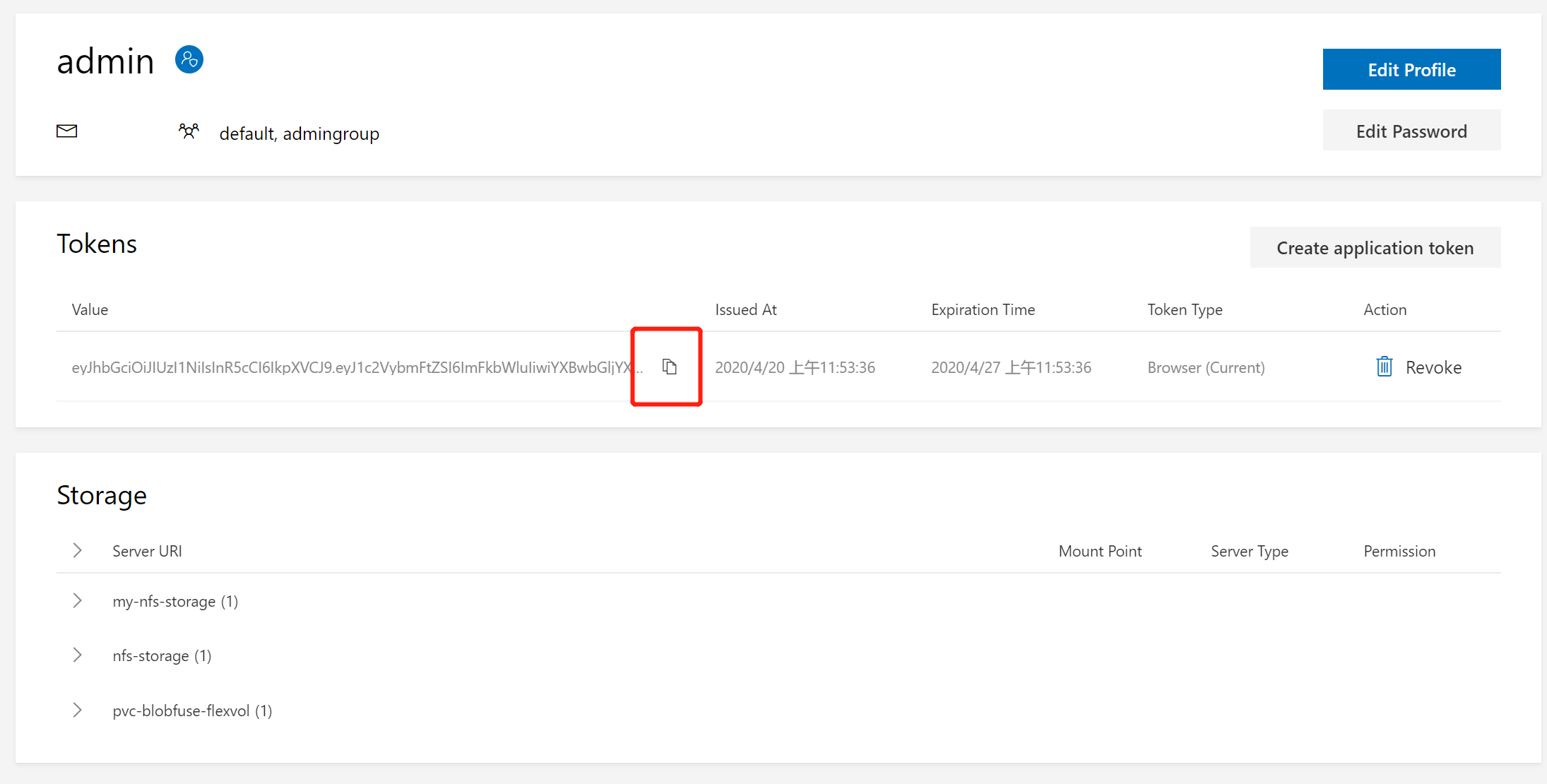
In OpenPAI, storage is bound to group. Thus you use the Group API to assign storage to groups. Get a group first, and then Update its extension.
For example, if you want to assign nfs-storage PVC to default group. First, GET http://<pai-master-ip>/rest-server/api/v2/groups/default, it will return:
{
  "groupname": "default",
  "description": "group for default vc",
  "externalName": "",
  "extension": {
    "acls": {
      "storageConfigs": [],
      "admin": false,
      "virtualClusters": ["default"]
    }
  }
}
The GET request must use header Authorization: Bearer <token> for authorization. This remains the same for all API calls. You may notice the storageConfigs in the return body. In fact it controls which storage a group can use. To add a nfs-storage to it, PUT http://<pai-master-ip>/rest-server/api/v2/groups. Request body is:
{
  "data": {
    "groupname": "default",
    "extension": {
      "acls": {
        "storageConfigs": ["nfs-storage"],
        "admin": false,
        "virtualClusters": ["default"]
      }
    }
  },
  "patch": true
}
Do not omit any fields in extension or it will change the virtualClusters setting unexpectedly.